Business Central Data Migration: The Complete Guide
Moving data into Microsoft Dynamics 365 Business Central is one of the most important parts of an ERP implementation. The software can be configured correctly, but if the customer, supplier, financial, item and historical data is incomplete or inaccurate, the new system can still fail to deliver. A successful migration needs more than an import routine: it needs planning, mapping, transformation, validation, reconciliation and a controlled cutover.
Microsoft provides several routes for getting data in, including data migration wizards for sources such as Dynamics NAV, Dynamics GP and QuickBooks, built-in templates, the Excel add-in and configuration packages for larger implementations (Microsoft Learn).
What is Business Central data migration?
It is the process of extracting information from an existing system, transforming it into a structure Business Central can use, loading it into the new environment and validating the result. The source might be Microsoft Dynamics NAV, Dynamics AX, Sage, SAP, an accounting package, a legacy ERP, a bespoke finance system, Excel or a custom database. The migration may involve both master data and financial history.
What data needs to be migrated?
Every implementation is different, but the common areas are:
- Master data: customers, vendors, items, contacts, employees, fixed assets and bank accounts.
- Financial data: chart of accounts, dimensions, G/L opening balances, customer, vendor and bank balances, and budgets.
- Operational data, depending on the project: sales orders, purchase orders, inventory, projects, contracts and historical transactions.
Scope should be set by business requirements, not by moving everything simply because it exists in the old system.
Data migration is not the same as data export
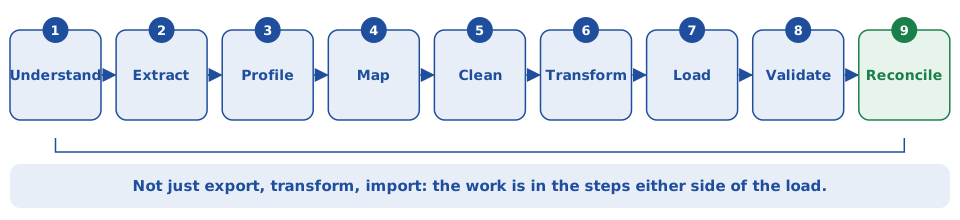
One of the biggest mistakes in ERP migration is treating the work as export → transform → import. The real process is closer to this:
Understand → Extract → Profile → Map → Clean → Transform → Load → Validate → Reconcile.
The difference matters because an old system may hold years of accumulated data: obsolete customers, inconsistent addresses, duplicated records, invalid codes and historical structures with no direct equivalent in Business Central. For more on the general approach, see ERP Data Migration: A Practical Approach That Holds Up at Go-Live.
Step 1: Understand the source system
Before mapping anything, understand the existing system:
- Which tables contain the required information?
- Which fields are actually used, and which are obsolete?
- Which codes are business-critical?
- How are customers, vendors and accounts identified and structured?
- How are dimensions represented?
- How are opening balances calculated?
This is where experience with legacy systems becomes valuable.
Step 2: Define the Business Central target
Next, understand the Business Central structure. A legacy financial system might hold Department, Cost Centre, Account and Project, while the Business Central design represents those concepts through G/L Account, Global Dimension 1, Global Dimension 2 and shortcut dimensions. The migration therefore needs an agreed mapping strategy.
Step 3: Create a source-to-target mapping
A mapping document sets out how each important source field maps to Business Central. It becomes one of the most important documents in the migration.
| Legacy field | Business Central | Transformation |
|---|---|---|
| Account Code | G/L Account No. | Mapping table |
| Dept | Dimension 1 | Code conversion |
| Supplier ID | Vendor No. | Mapping |
| Customer ID | Customer No. | Mapping |
| Opening Balance | G/L Journal | Calculated |
| Currency | Currency Code | Normalisation |
Step 4: Clean the data
Find data quality problems before the final migration. Typical examples are duplicate customers and vendors, invalid VAT numbers, missing addresses, invalid account codes, obsolete dimensions, inconsistent country codes, incorrect currencies and missing mandatory fields. Cleaning data before migration is usually preferable to loading poor-quality information into the new ERP.
Step 5: Transform the data
The source structure rarely matches Business Central exactly. Transformation can include code conversion, field concatenation and splitting, date and currency conversion, dimension, account, customer and vendor mapping, status conversion and the transformation of historical data. This is where ETL tools and custom scripts become useful.
Step 6: Load the data
Business Central offers several loading mechanisms, including data migration wizards, templates, Excel imports and configuration packages. The right approach depends on:
- Data volume and complexity
- Migration scope
- Required validation
- Repeatability
- Cutover requirements
A complex migration may need more than a simple spreadsheet import.
Step 7: Validate the migration
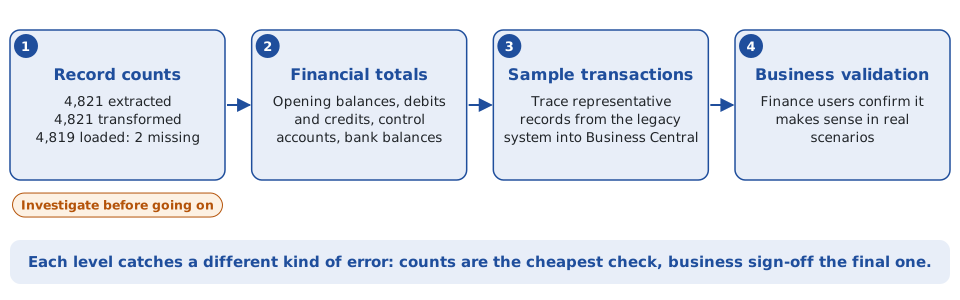
Validation should happen at several levels.
- Record counts: if 4,821 customers are extracted, 4,821 transformed and 4,819 loaded, that immediately identifies a problem.
- Financial totals: compare opening balances, debits, credits, customer, vendor and bank balances, and control accounts.
- Sample transactions: select representative transactions and trace them from the legacy system into Business Central.
- Business validation: finance users confirm that the migrated data makes sense in real business scenarios.
Step 8: Reconcile
Reconciliation is one of the most important parts of a financial migration. The objective is not “the data imported successfully.” It is “the migrated Business Central data reconciles with the source system.”
| Legacy G/L total | €12,458,921 |
|---|---|
| Business Central migrated total | €12,458,921 |
| Difference | €0 |
That is evidence the migration has achieved the expected financial result.
How much historical data should be migrated?
There is no universal answer. Some organisations need opening balances only, others the current year’s transactions and others several years of history. The decision should weigh legal, audit and reporting requirements, business continuity, storage, migration complexity and cost. Sometimes the best architecture is to migrate operationally required information into Business Central and keep older history in a reporting or archive platform.
NAV to Business Central migration
NAV migrations need particular care because organisations may have accumulated years of customisation. Before migrating, identify:
- Custom tables, fields, reports and code
- Third-party extensions
- Integrations
- Historical data
- Business-critical processes
A move to the cloud is not simply a database copy. It can involve application modernisation, extension replacement, integration redesign and data migration, and data volume, storage, the number of companies, extensions and migration performance all need planning when moving on-premises data to Business Central Online. For a worked example, see Integra Finance to Business Central: A Practical Data Migration Approach.
Business Central data migration checklist
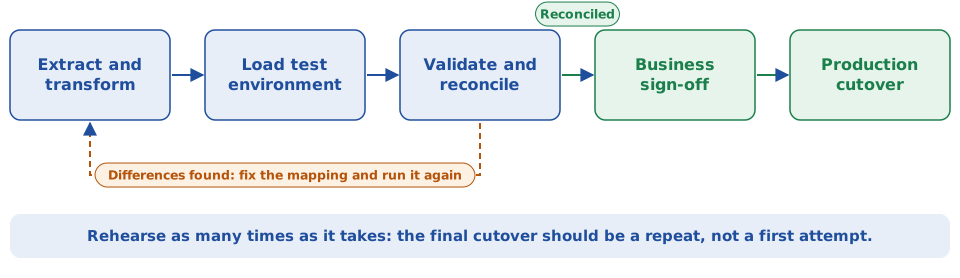
The checklist below follows a rehearsal cycle: migrate, validate, reconcile and repeat until the numbers agree, then cut over.
Discovery
- Identify source systems and data owners
- Define migration scope
- Identify historical requirements
Mapping
- Map customers, vendors, G/L accounts, dimensions, fixed assets and bank accounts
- Define transformation rules
Data quality
- Remove duplicates
- Validate mandatory fields and financial data
- Standardise codes
- Identify exceptions
Migration
- Extract and transform source data
- Load the test environment, then validate and reconcile
- Repeat the migration
- Prepare the production cutover
Go-live
- Final extraction, transformation and load
- Financial reconciliation and business sign-off
- Cutover and post-go-live validation
Need help with a Business Central data migration?
Data migration is one of the areas where ERP experience matters. My Business Central experience includes legacy-to-Business-Central migration, financial data, dimensions, customers, vendors, fixed assets, bank balances, opening balances, integrations, ETL and reporting. The objective is not simply to get data into Business Central, but to make sure the migrated system holds accurate, usable and reconciled business data. Get in touch at declan@feelyconsultants.com or find me on LinkedIn.